How to use Know My Battery
Know My Battery records your battery in the background and turns those readings into plain answers: how much charge your battery really holds, what drains it, and how to make it last. This guide walks you through every screen and feature, in the order you'll meet them.
Getting started
Install and open the app
Install Know My Battery from Google Play and open it. There's no account to create and nothing to sign in to. The app starts reading your battery straight away.
Along the bottom you'll find five tabs: Now, Graphs, History, Health and Settings. The More button at the top right opens Help and Upgrade to Premium.
Finish setting up
On the Now tab, a Finish setting up card lists up to three steps. Each one makes your recordings more complete.
- Turn on background recording. Tap Turn on. Without it, Know My Battery only measures while the app is open. With it, the app keeps measuring when it's closed and starts again after a restart. A small notification shows while it records.
- Allow notifications. Tap Allow. Notifications are needed for charge-limit, low-battery and overheat alerts, and for the results of capacity checks.
- Let Know My Battery run in the background. Tap Open settings, open Battery and choose Unrestricted. Some phones stop background apps to save power, which leaves gaps in your history.
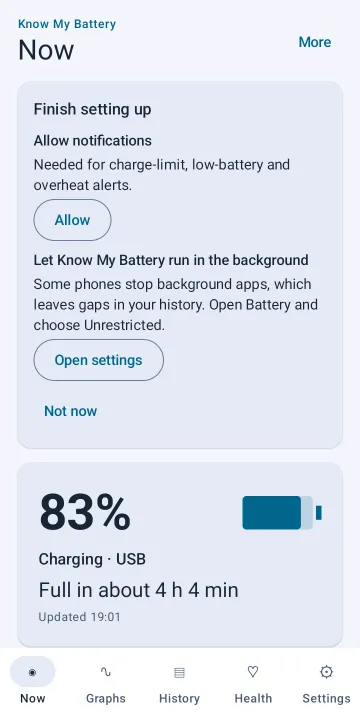
Once background recording is on, you can hide the optional steps with Not now.
Tip: the app learns from normal use. After setup there's nothing else you need to do; charge and use your phone as usual and the measurements build up by themselves.
The Now tab
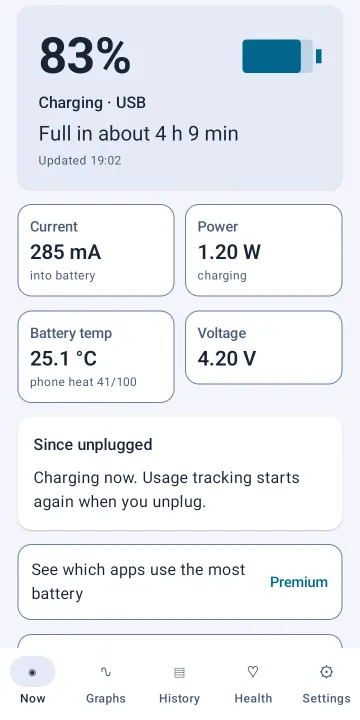
The Now tab shows what your battery is doing right now.
- Battery level and status at the top, with the time it was last updated.
- Time to full or time left, for example "Full in about 1 h 10 min" or "About 9 h left". It's worked out from how fast the battery is charging or draining right now, so it changes when you use the phone differently. "(rough)" means the estimate comes from the level alone.
- Current in mA: how fast charge flows into the battery (charging) or out of it (using the phone).
- Power in watts: that flow multiplied by the voltage.
- Battery temp, with phone heat from 0 to 100 on phones that report it. Phone heat comes from the phone's own skin and processor sensors.
- Voltage of the battery.
Further down:
- Since unplugged shows your average drain and current since you last unplugged, split into screen-on and screen-off time and drain. While charging, it waits until you unplug.
- This charge / Last charge shows the charge from start to end: whether it was fast charging, the charge added, charging speed, average and highest current, average power into the battery and average temperature.
- Battery health is a summary of your capacity and health. Tap it to open the Health tab.
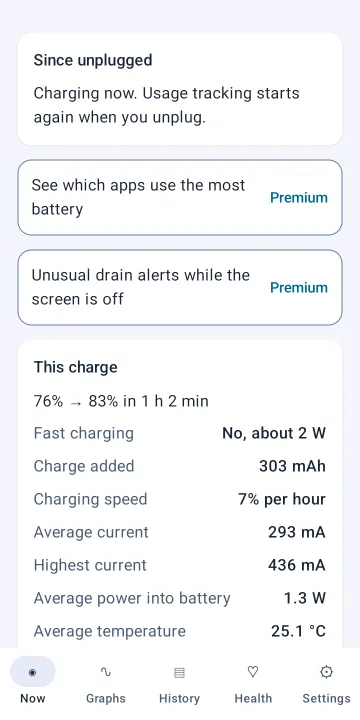
A dash (—) means your phone doesn't report that value. Power is measured going into the battery, so it's a little lower than the charger's rating.
The Graphs tab
Graphs show your recordings over time. Choose what to show (Level, Current, Power, Temperature or Voltage) and the time range (15 min, 1 hour, 6 hours or 24 hours). Under the graph you'll see the latest, lowest, highest and average value for that range.
Free shows the battery level over the last 15 minutes. The other graphs and the longer ranges are part of Premium Premium.
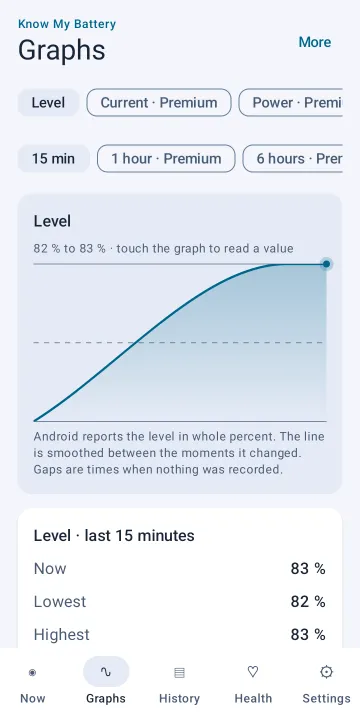
The Battery details card below lists the power source, Android's health status, charge remaining, battery technology, charge cycles (when the phone reports them), the phone's own average current and phone heat.
The History tab
History lists every period on the charger (Charging) and on battery (On battery) that lasted longer than a minute. Each entry shows when it started, how long it lasted, the level from start to end, and the average charging current or the charge used.
The summary at the top counts your charges, time charging, charge added and time on battery for the period you choose. Free covers the last 7 days; 30 days, 90 days and all history are Premium Premium.
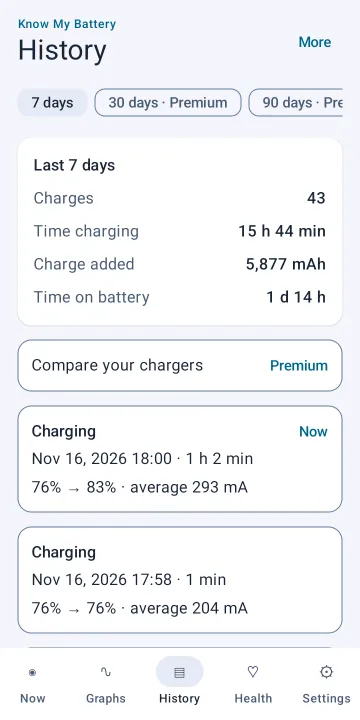
Tap an entry to see its details: start and end time, duration, battery level, energy, average and highest current and temperature. A graph for each session is Premium Premium. If some readings are missing, for example while the app was stopped, the totals cover only the recorded time and the entry says so.
The list shows the latest 100 entries. To see everything, export your data from Settings.
The Health tab
The top card shows your battery capacity: how much charge a full battery holds, in mAh. Once you've entered the original capacity, you'll also see a health rating and the capacity as a percentage of the original. Below it, a line tells you how confident the result is.
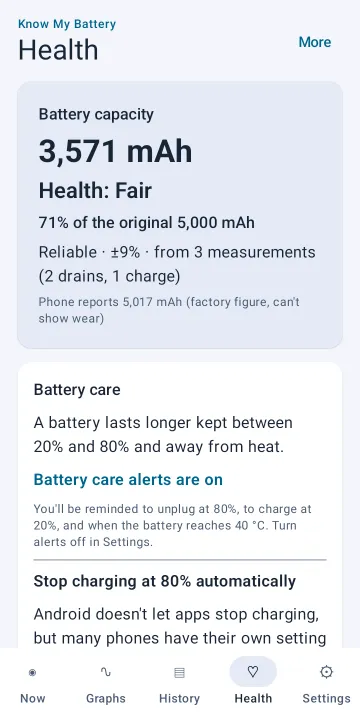
The Health tab also holds the Battery care card, the Full capacity check, Measure a drain, how capacity is measured, charge cycles, what Android reports and the original capacity entry.
| Health rating | Capacity compared with the original |
|---|---|
| Excellent | 90% or more |
| Good | 80–90% |
| Fair | 70–80% |
| Worn | 60–70% |
| Replace soon | Below 60% |
Charge cycles shows two counts: the phone's own count, which Android reports from Android 14 and only on some phones, and the battery use Know My Battery recorded, counted in full batteries.
Measuring capacity
Automatic measurement
You don't need to do anything special. Know My Battery measures the charge going in or out between the exact moments the battery level steps from one percent to the next. Any charge or drain of 20% or more without a recording break counts as a measurement, so normal use is enough.
Results are marked reliable after 3 measurements covering 100% in total. The card How capacity is measured lists your recent measurements and, once you have both, the figure from charges and the figure from drains. The capacity shown is the average of the two, because a current sensor that reads slightly high or low errs one way on charges and the other way on drains.
Steps into or out of 100% and below 5% are left out: phones hold 100% while still topping up, and often rescale the last few percent.
Full capacity check
For a clear one-off measurement, run a full capacity check from the Health tab:
- Tap Start full capacity check.
- Use your phone until the battery is at 20% or lower.
- Charge to 100% without unplugging.
Know My Battery records in the background until the check is done, even if background recording is off, and sends you a notification with the result. If you unplug before 100%, the check starts again from 20% or lower. Once a month is enough. You can stop it any time with Cancel check.
Measure a drain
Your phone normally sleeps on battery, which leaves gaps in the recording. Start drain measurement keeps Know My Battery recording steadily until you plug in, so a long drain, for example overnight, can count as a capacity measurement.
- Start it with the battery well charged: the drain counts once it covers 20% or more.
- It ends when you plug in, below 5%, or after 48 hours, and you'll get a notification with the result.
- It uses a little more battery while it runs. That use is measured too.
- Tap Stop measuring to end it early.
Enter the original capacity
To see health as a rating and a percentage, enter your battery's original capacity in Original capacity (mAh) at the bottom of the Health tab, then tap Save. You'll find it in your phone's specifications, for example 5000. Leave it blank if you don't know it.
After a battery replacement
Tap I replaced the battery after fitting a new battery. Your history is kept, but capacity is measured again from new charges.
Battery care
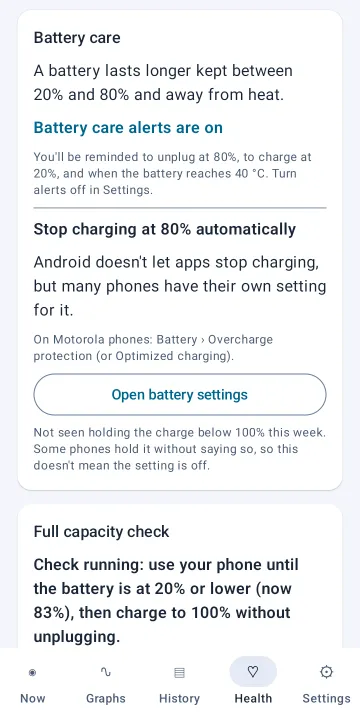
A battery lasts longer kept between 20% and 80% and away from heat. The Battery care card on the Health tab helps with both.
One-tap battery care alerts
Tap Turn on battery care alerts. You'll be reminded to unplug at 80%, to charge at 20%, and when the battery reaches 40 °C. If alerts are already on with other levels, the button reads Use battery care alert levels. You can turn alerts off again in Settings.
Stop charging at 80% automatically
Android doesn't let apps stop charging, but many phones have their own setting for it. The card shows a hint for where to find it on your brand of phone, and Open battery settings takes you to your phone's battery page. Menu names vary between models and Android versions, so treat the hint as a starting point.
Phone held the charge
If your phone stopped charging below 100% on the charger for a while in the last week, the card shows Phone held the charge with the level and time. That usually means your phone's own charge protection was working. Some phones hold the charge without saying so, so if nothing appears, it doesn't mean the setting is off.
Alerts
Turn on Battery alerts in Settings to be notified:
- at your charge limit while charging (default 80%),
- at low battery (default 20%),
- when the battery is hot or cold.
Each alert fires once, then waits until the condition has clearly ended before it can fire again. Alerts are worked out by the background recorder, so turning on alerts also turns on background recording. Choosing your own alert levels is Premium Premium.
Independently of these alerts, the app warns you if the battery temperature sensor doesn't seem to respond to real heating. See Troubleshooting.
The Settings tab
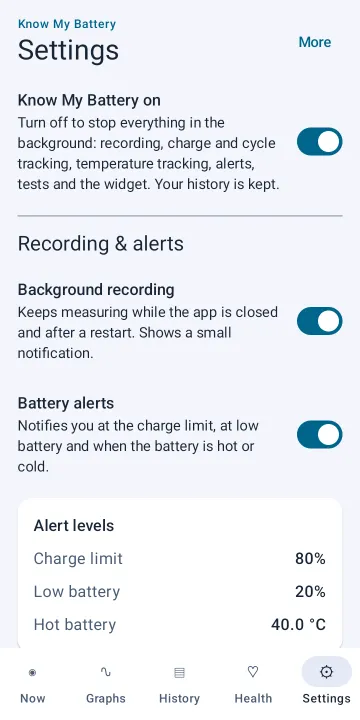
- Know My Battery on: the master switch. See Turning everything off.
- Background recording: keeps measuring while the app is closed and after a restart. Shows a small notification.
- Battery alerts and the alert levels.
- Appearance: the theme family, System, Light or Dark, Wallpaper colors (Android 12 and later) and Fahrenheit.
- Your data: how long detailed readings are kept, export, backup and deleting history. See Your data.
Premium features
Premium is a one-time purchase through Google Play. Open More › Upgrade to Premium to see the price and buy it. If you reinstall or move to a new phone with the same Google account, use Restore purchase. Everything in Free keeps working with or without Premium.
Which apps use the most battery Premium
On the Now tab, Battery use by app · last 24 hours shows the battery each app used while it was on screen, measured from the battery current. To turn it on, tap Allow usage access, find Know My Battery in the list and turn it on. Apps appear after you've used the phone on battery for a while. Tap an app for details.
Android doesn't let apps read another app's battery use directly, so apps that kept working in the background are listed separately as activity reported by Android, with a shortcut to Open Android's battery usage.
Unusual drain while the screen is off Premium
The Screen-off drain card compares the drain in the last hour with your usual rate. It's measured from how long each 1% takes with the screen off, which works while the phone sleeps. With Battery alerts on, you'll get a notification when screen-off drain is 3× your usual rate or more, with the apps that were busy.
Battery wear habits Premium
A score out of 100 from the last 7 days of recordings, with tips. It rates three habits: Plugged in at 100%, Charging while hot (40 °C or more) and Run down below 10%. It needs at least 12 hours of recording. It's based on general lithium-ion battery care guidance and isn't a prediction of how long your battery will last.
Battery health report Premium
Tap Save battery health report (PDF) on the Health tab to create a report from your own recordings, to keep or share, for example when selling your phone.
Capacity over time and charger comparison Premium
Capacity over time on the Health tab shows how your measured capacity changes over months. Charger comparison on the History tab compares your chargers by speed, average current and average power. Only charges of 10 minutes or more that start below 80% are compared, because charging slows near full.
Battery test Premium
The battery test measures capacity under load. Know My Battery runs a heavy calculation on every processor core, so the battery discharges at a high rate, and works out the full capacity from the charge that comes out. Open it with Run a battery test on the Health tab, choose how far to discharge, and tap Start test.
- Unplug the charger first. The battery needs enough charge, and the phone needs to be cool, before the test can start.
- You can keep using your phone; keep the screen on. A red warning notification shows while it runs, with a reminder every 10 minutes.
- Bigger drops are more accurate, because the battery level moves in 1% steps. A 20% drop takes about 30–60 minutes.
Safety: the test warms the phone and uses part of a charge cycle, so there's no need to run it often. Once a month is plenty. It stops by itself if the phone gets warm, if the battery reaches 40 °C or 20%, if you plug in, if the screen turns off, or after 3 hours. If your phone doesn't report its heat level and it feels hot, stop the test with Stop test.
More Premium tools Premium
- Your own alert levels for the charge limit, low battery and hot and cold battery.
- Home screen widget: battery level, time left and live current. Add it the usual way: touch and hold your home screen, choose Widgets and find Know My Battery.
- Live notification: the recording notification shows the level, status, time left and details.
- Themes: AMOLED Pro, Clean Light and Instrument Panel. Graphite Dark is free.
- Full history, all graphs, JSON export, and full backup and restore.
Your data
Everything Know My Battery records stays on your phone. Under Your data in Settings you can:
- Choose how long to Keep detailed readings for: 30 days, 90 days, 1 year or Forever. Charge and battery summaries are always kept.
- Export CSV of your readings. Free exports the last 7 days.
- Export JSON, Save a full backup and Restore from backup Premium. Before a restore replaces anything, you'll see what the backup contains and confirm.
- Delete all history: removes every recorded reading and session from this phone. It can't be undone.
Turning everything off
The Know My Battery on switch at the top of Settings stops everything in the background: recording, charge and cycle tracking, temperature tracking, alerts, tests and the widget. Your history is kept. While it's off, a banner reads "Know My Battery is off. Nothing is being recorded." with a Turn on button.
Troubleshooting
My history has gaps
Check that background recording is on, then allow Know My Battery to run in the background: open your phone's settings for the app, choose Battery and select Unrestricted. Some phones stop background apps to save power. On battery, the phone also sleeps between readings, which is normal; the app is designed to measure through it.
"Battery temperature sensor is likely malfunctioning"
This warning appears when the battery temperature your phone reports doesn't respond to real heating. On such phones, temperature readings and heat-based checks can't be trusted, so the app tells you rather than showing misleading numbers. Habits that depend on temperature are left unscored.
The current is negative while plugged in
That means the phone is using more power than the charger supplies, so the battery is still draining. You'll see "The charger isn't keeping up, so the battery is still draining." It's common with a weak charger, a computer USB port, or heavy use while charging.
Health isn't shown
Enter the original capacity on the Health tab. Health compares the measured capacity with the original, so it needs that number.
Capacity still says it's learning
Capacity needs charges or drains of 20% or more without a recording break, and it's marked reliable after 3 measurements covering 100% in total. Keep background recording on and use the phone normally, or run a full capacity check.
The numbers differ from another app or from Settings
Apps measure in different ways. Know My Battery measures the charge between exact 1% steps from your phone's own readings and shows how confident each result is. Phones also differ in how accurately they report current and level. Treat every battery health figure, including this one, as an estimate rather than a laboratory test.
Can the app stop charging at 80%?
No. Android doesn't let apps stop charging without root. Use your phone's own charge limit setting, which the Battery care card helps you find, and the 80% unplug reminder.